ARCHIVED: Oncourse Menubar: Overview
What it does
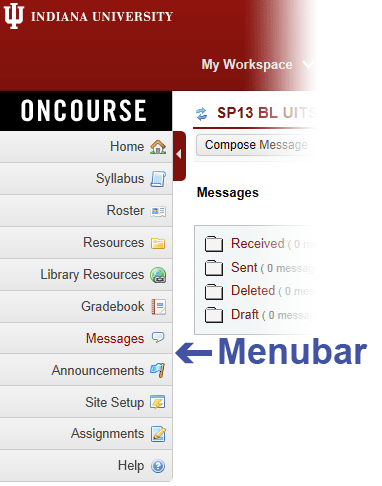
In your site, the menubar is a customizable column along the left of the screen that contains links to numerous collaborative tools. Site leaders have permissions to add, edit, and delete tools with Site Setup or Worksite Setup.
|
Key concepts
Collapsing the menubar: If you'd like more room in the main area of your site, click the left arrow near the top of the menubar to hide the tool names.
Adding tools: A site participant with the appropriate role can modify the content of the site's menubar by adding or subtracting tools using the Site Setup tool.
The site owner can choose to display (or hide) most tools in the menubar. Some of the most popular tools are listed below; for a complete list of available tools, see ARCHIVED: Default tools for new sites.
Site Setup displays information about the site for site participants. Site leaders can use this tool to add participants, edit tools, manage groups, and import files. This tool is part of every site and cannot be deleted from the menubar.
The Help tool has support documentation for all the tools and can contain links to other support resources. Help is also part of every site and cannot be deleted from the menubar.
Note: Your system administrator controls which tools are available on your system. When new tools become available, or users' needs change, your system administrator can add tools to the system, and then they will appear in the list of tools that you can add to your site.
- Home: This is the site's Home page. Home can contain a list of recent announcements, discussion items, and chat messages. Also, participants can access Message Center notifications here.
- Announcements: Post current, time-critical information (e.g., to inform users of changes in the schedule or policies of the class).
- Assignments: Post, submit, and grade online assignments. Your participants can submit assignments electronically for grading and comments.
- Calendar: Post and view deadlines and events (e.g., class session dates, assignments dates, and cancellations).
- Forums: Create discussion forums.
- Gradebook: Calculate, store, and present grades.
- Messages: Add private messaging to your site.
- Resources: Upload, store, and share files and URLs.
- Roster: View the list of site participants.
- Syllabus: Create and display a course syllabus, or have it point to a pre-existing online syllabus.
Things to consider
- Instructors and staff can familiarize themselves with available tools by requesting a practice course site. See ARCHIVED: Requesting a site.
- To avoid the accidental loss of resources, assign roles wisely. Assign roles with broad permissions only to co-instructors and others whom you can trust to edit your site. Everyone else should get a more restricted role, allowing access but not site manipulation.
Help documentation
For help documentation about the menubar, see ARCHIVED: Menubar.
This is document arcc in the Knowledge Base.
Last modified on 2018-01-18 14:17:41.