ARCHIVED: For Office 2007, what are some new interface features?
On this page:
Introduction
Note: Much of the information in this document is from Microsoft's Office Online page.
Microsoft Office 2007 is a major departure from previous versions. With this product, Microsoft has redesigned the user interface and changed the way users work with the programs within Office. The , and menus are gone; the menus, toolbars, and workflows have been replaced with the new features listed below.
In the redesign of Office 2007, Microsoft's stated goals were:
- To make the more powerful features more easily accessible by the novice and regular user, rather than only by "power users". Microsoft describes this as making Office 2007 more "results oriented".
- To separate authoring commands (i.e., those used in composing or formatting, such as page or object coloring or text formatting) from file-level commands (such as printing, sharing, or protecting) by getting rid of the existing menus (which do not supply context for the commands they list) and toolbars (which do not adequately display the results of user actions).
You can view Microsoft's video explaining the new Office 2007 interface features here:
http://office.microsoft.com/en-us/support/the-microsoft-office-fluent-user-interface-video-HA010167948.aspx
The Ribbon
In Microsoft Word, Excel, PowerPoint, and Access, and in the mail composer/editor of Office Outlook, the menus (e.g., , , ) and toolbars have been replaced by the Ribbon. This Ribbon groups commands previously found in menus or toolbars into collections based on activities.
The tab, for example, contains commands for inserting objects (e.g., pictures and tables), adjusting page layout, working with references, preparing mailings, and reviewing. Commands related to the layout of the final page (e.g., margins, text indentation, borders) are in the tab.
The tab is an exception, in that it provides a single place for grouping the most frequently used commands for that specific program in the suite.

The Microsoft Office Button
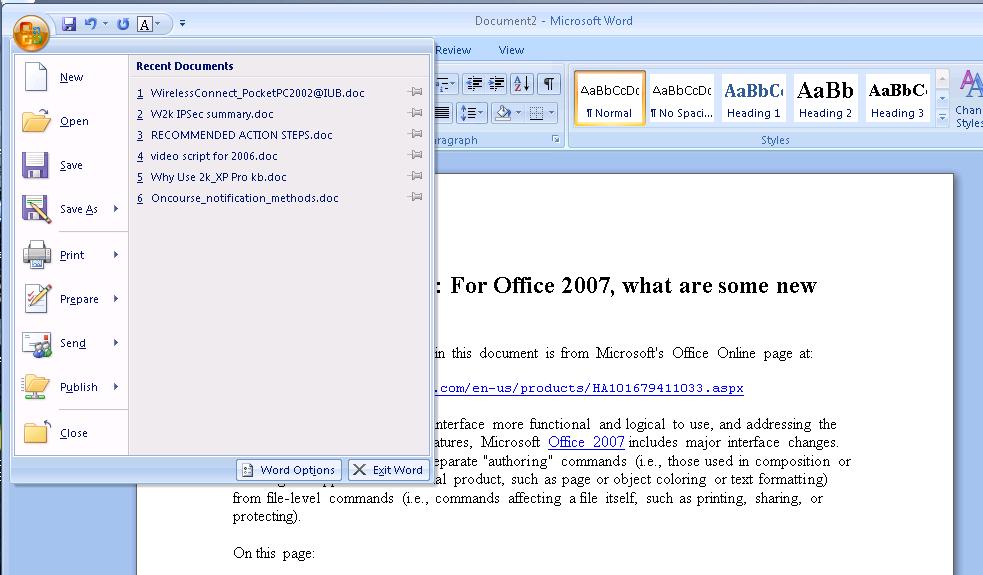
The Microsoft Office Button is a single location for the most commonly used commands in any office program, such as , , and .
This may appear to duplicate the tab, but this separation of seemingly similar functions supports the differentiation between authoring and file-level functions. The tab contains application-specific authoring commands (for how you wish the final product to appear, or what you want it to contain); the Office Button menu, however, contains file-level commands such as saving the file, naming it, or printing.
Contextual tabs
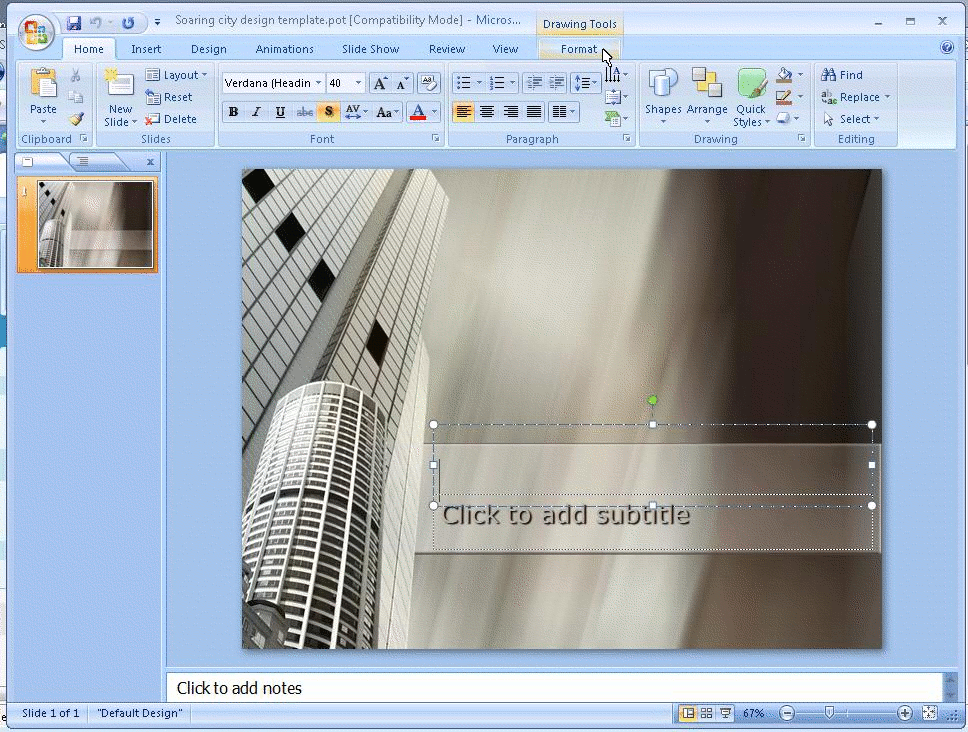
Contextual tabs replace menus (e.g., , , ), and reside on the Ribbon.
Contextual tabs are not fixed, but change based on the situation. Microsoft explains contextual tabs as follows:
"Certain sets of commands are only relevant when objects of a particular type are being edited. For example, the commands for editing a chart are not relevant until a chart appears in a spreadsheet and the user is focusing on modifying it. In current versions of Microsoft Office applications, these commands can be difficult to find. In Office Excel 2007, clicking on a chart causes a contextual tab to appear with commands used for chart editing. Contextual tabs only appear when they are needed and make it much easier to find and use the commands needed for the operation at hand."
Commands do not remain in static locations, but will appear as needed.
Galleries
Microsoft provides the following explanation for Galleries:
"Galleries simplify many operations by presenting a set of results that users can simply 'pick and click' to achieve the desired results."
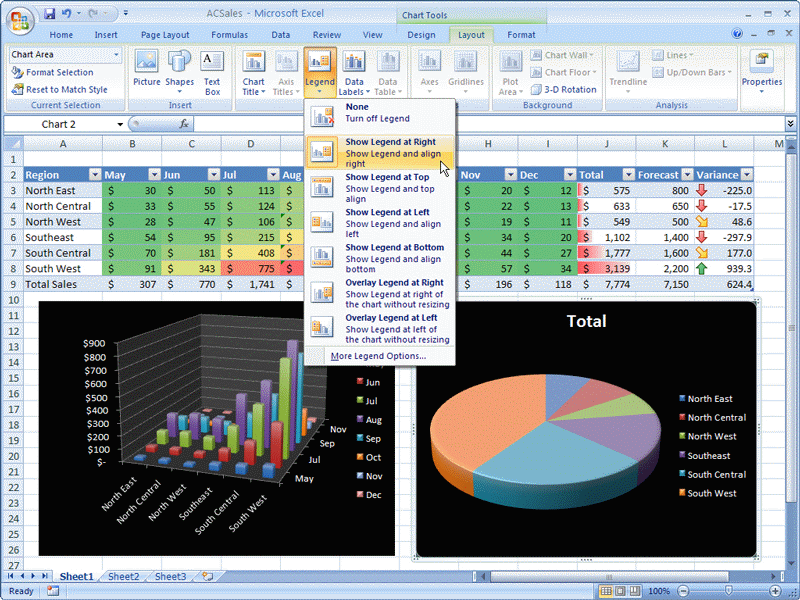
Galleries are graphical representations of formatting options you can apply to given elements in an Office document.
While some gallery options are simple formatting changes, as they were in previous Office environments (e.g., font characteristics such as boldface), others are collections of what used to be many individual settings in previous Office environments. It is not easy to fully map this function directly to the way older Office suites worked. Think of these as end-result oriented commands.
Consider the following Galleries example. To add and format a footer in Word 2007, you would select the tab, and then the options. The Gallery will open, displaying options directly affecting the appearance of the footer. Several options will be available, including a three column footer, an "Austere" footer, and a simple unformatted footer. Selecting the Austere footer gives you a footer with a specific font, a colored page number, and a section in which to enter a company name. As another example, the three column footer wouldn't specify colors or fonts, but would make available three columns in the footer area.
Contrast that to previous Word versions, which would require many more clicks to format each individual element of the Austere footer that you can create with just three clicks in Word 2007.
In summary, Galleries simplify the act of formatting a document's elements by placing them in one location. Some Galleries require no fewer clicks than in earlier Office versions, but others combine what would have been many individual settings and commands into a single click.
See a Gallery. (Image comes from Microsoft's web site.)
Live Preview
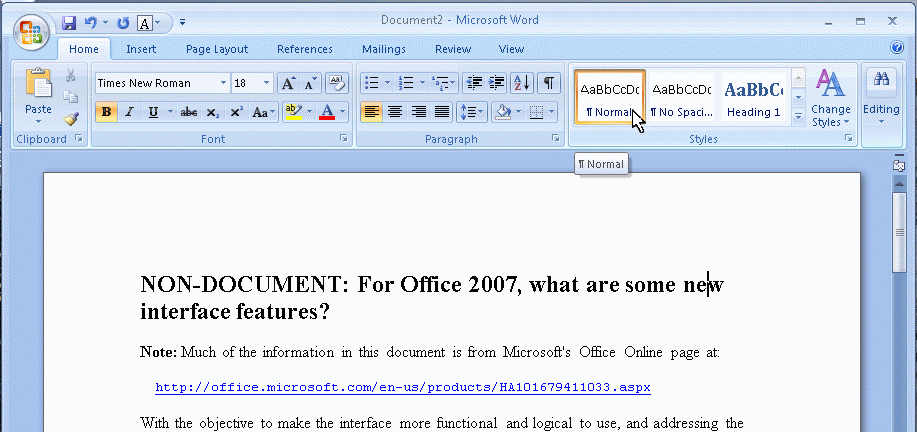
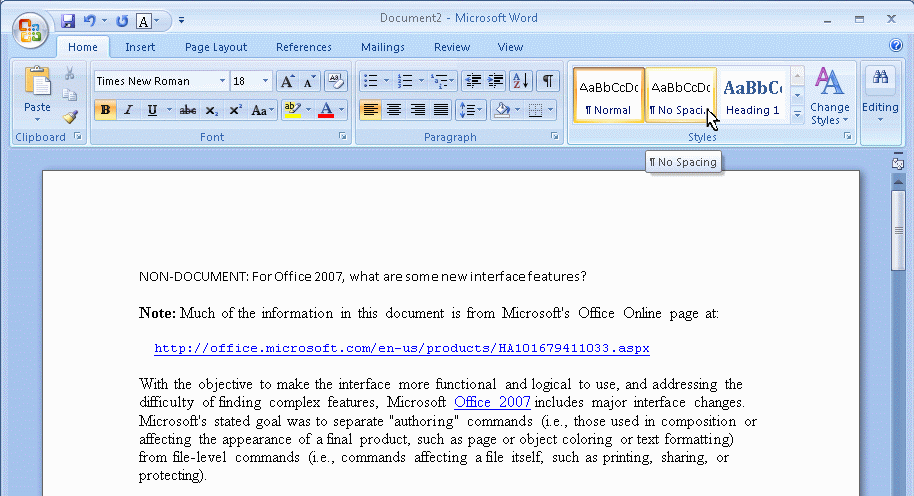
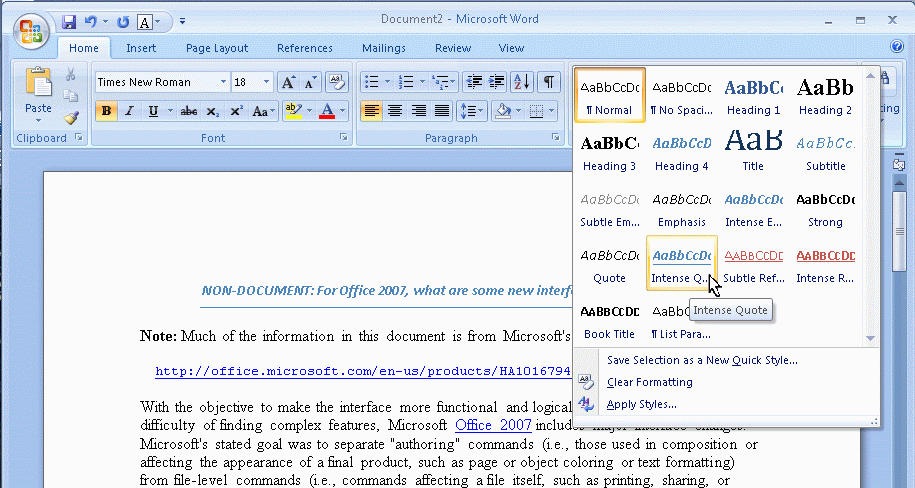
As you hover your pointer over a set of Gallery results, Live Preview displays the effect of an editing or formatting change. It provides an on-the-fly preview of the document in question (not in a preview window).
For example, suppose you type a page of text and then go to the Gallery. As you hover over the built-in themes, your document changes in response to each one.
For example, hovering over one gallery gives you one header font (in the first link below, Times New Roman bold 18 point) and body text font (Times New Roman 12 point), whereas hovering over others will give you a different set of header and body text fonts, as illustrated in the two other links below.
Such formatting differences do not remain until you click to apply a particular theme.
See the Live Preview of the Normal page layout option.
See the Live Preview of the No Spacing page layout option.
See the Live Preview of the Intense Quote page layout option.
Mini toolbar
The Mini toolbar, which appears near any selected text, provides access to frequently used formatting commands. If you move your cursor away from it, the toolbar becomes semi-transparent so that you can see whatever appears below it. When you move the mouse over it, the toolbar becomes opaque. It also appears above the contextual menu if you right-click selected text.


This is document auqi in the Knowledge Base.
Last modified on 2018-01-18 15:37:20.