About office telephone equipment at IU
On this page:
- Before you begin
- Obtain audio equipment from UITS
- Compatible but no longer available for purchase
- Unsupported phone models
- Departmental purchase of equipment
Before you begin
Office telephone service for faculty and staff at Indiana University has transitioned from Skype for Business to Teams Calls.
For more, see About Microsoft Teams Calls at IU.
For most individual employee phone lines, UITS recommends audio devices that depend on a computer, namely:
- Headsets: USB headsets provide ease of use and the greatest number of feature options. Many models of USB headset work well with Microsoft Teams Calls.
- USB speakerphones: In private work settings or conference rooms, USB speakerphone models will work well for those who desire a phone.
- USB phones: Where a telephone is desired for an individual employee in an open office environment, a USB phone may be appropriate.
- Internal computer audio devices: In some private work settings, faculty or staff may prefer to simply use a laptop's internal speaker and microphone for calls or meetings.
Some shared phone situations, such as front desks, common areas, labs, classrooms, and conference rooms without a computer, require IP phones, which connect directly to a wired network jack and will not require you to be logged into a computer. Older IP phone models (see below) no longer work. Replace these with a device that is compatible with or certified for Microsoft Teams, whether they are being used in a shared phone situation or at an individual's desk.
If your department plans to take payment card transactions, contact the Office of the Treasurer for guidance.
Obtain audio equipment from UITS
- IU Bloomington and IUPUI:
When establishing telephone service for a new phone number, charges may include amounts for the new number, the phone equipment (based on the type of equipment requested) and the installation. Charges also apply for additional devices for a given employee, or for replacements for obsolete equipment. For rates, see UITS Rates for Direct-Bill Services. To request new equipment, use the UITS Telecommunications Request form.
- Other campuses: Consult your campus IT group to determine how to obtain equipment.
For the best user experience, UITS recommends USB devices and headsets whenever possible, but all equipment below (including the IP desk phones) will work with Teams Calls.
To view all the content available to you here, use the green button at the top of this page to log into the Knowledge Base.
Optional additional equipment
- USB adapter (C to A): $14.00
- Wall bracket for CCX 400 phone: $20.00
- Wall bracket for CCX 500 phone: $20.00
Compatible but no longer available for purchase
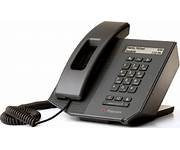
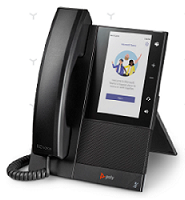
Departments may choose to retain the models listed below where they are already deployed; these will work with Teams Calls (with exceptions as noted below).
| Polycom CX300 desktop phone |
|
 |
|---|---|---|
| Poly CCX 400 desktop IP phone |
|
 |
| Poly CCX 500 desktop IP phone |
|
|
Unsupported phone models
The following models of IP phones no longer work in the Teams Calls environment. Departments should use the UITS Telecommunications Request form for assistance in replacing these devices.
| Model | Image |
|---|---|
| Polycom VVX 500 series phone | 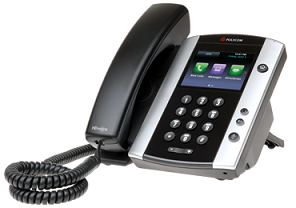 |
| Polycom CX600 phone | 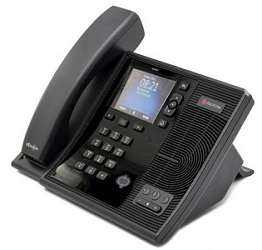 |
Departmental purchase of equipment
UITS encourages departments to purchase audio equipment through the process listed above. If your department chooses to purchase equipment independently, make sure that any models you purchase are certified for Microsoft Teams. Many different headset models will work, but IP phones may be incompatible unless they are designed to work with Teams Calls. For assistance in choosing equipment, use the UITS Telecommunications Request form to contact UITS Communications Planning and Implementation.
UITS does not provide webcams; departments that want to provide them for employees can order them as described below.
For departmental purchases independent of UITS Telecom, order from CDW-G using BUY.IU for negotiated contract prices.
Related documents
This is document awgk in the Knowledge Base.
Last modified on 2024-02-20 09:12:27.