Connect to IU's SSL VPN using Ivanti Secure Access (formerly Pulse Secure) in Windows or macOS
On this page:
- Overview
- Install Ivanti Secure Access (formerly Pulse Secure)
- Configure the connection
- Connect and disconnect
- Qualified and compatible platforms
Overview
To connect to Indiana University's SSL VPN for individuals from your Windows or macOS workstation, use the Ivanti Secure Access SSL VPN client available from IUware.
Ivanti Secure Access lets you connect directly to IU's SSL VPN without having to log in through a web browser.
- Use the IU VPN only under one of these conditions:
- If you are trying to access a service you can't get to another way.
- If your local UITS support person has told you that you need to use it.
Generally, you won't need to use the VPN if you are a student. For example, you don't need a VPN connection to:
- Use learning tools, such as Canvas, Zoom, or Kaltura.
- Read your IU email over the web.
- Work with your files in Microsoft OneDrive at IU or Google at IU My Drive.
- If you have difficulty with the VPN: Try using IUanyWare (doesn't require a VPN connection).
For example, you can use IUanyWare's Remote Desktop Connection app to remote into a device on campus. Additionally, IUanyWare's Chrome browser allows you to access sites as if you were on campus.
In IUanyWare, search the available apps to find what may be helpful.
- On the IU network: You cannot connect to the VPN, as it is for off-campus use only.
If you receive a 1329 error when attempting to connect to the VPN, try connecting using a non-eduroam or non-IU Secure connection.
- To ensure accountability of network communication, the University Information Policy Office prohibits group accounts from connecting to IU's SSL VPN. To make a VPN connection, you must log in using your personal IU username and passphrase.
- For general VPN usage, you can connect one device at a time. If you connect a second device while you already have a connection running to another device, you'll see a prompt asking whether you want to maintain the existing connection and cancel the new connection request, or break the existing connection and establish a new connection. Groups VPN users can connect two devices concurrently.
Install Ivanti Secure Access (formerly Pulse Secure)
IU students, faculty, and staff can download Ivanti Secure Access from IUware:
By default, macOS may let you install applications from verified sources only; consequently, when you try to install Ivanti Secure Access, you may see an error similar to "ps-pulse-mac.dmg can't be opened because it is from an unidentified developer." To bypass this error (for this application only) and manually install Ivanti Secure Access:
- While holding
control, select the application's icon, and then, from the drop-down that appears, select . - In the new window, select to manually launch Ivanti Secure Access.
Configure the connection
- Select the Ivanti Secure Access icon to configure the app for your first use:

- Windows: Select the icon in your task bar.
- macOS: Select the icon in your menu bar. Alternatively, find and choose the icon in your
Applicationsfolder.
- To add a new connection, select (the plus sign).
- In the "Add Connection" box:
- Type: Make sure is selected.
- Name: Enter a name (for example,
IU VPN) to distinguish this connection from other VPN connections you may configure (for example, to the Groups or HSN VPN; see the note below). - Server URL: Enter
https://vpn.iu.edu.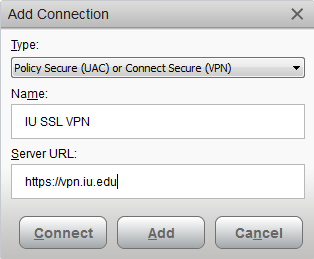
- Select .
If you use the IU Groups VPN or Health Sciences Network (HSN) VPN, add an additional connection using the appropriate URL:
- Groups VPN: https://vpn.iu.edu/groups
- HSN VPN: https://vpn.iu.edu/hsn
For more about these VPNs, see:
Connect and disconnect
To connect to the IU SSL VPN:
- Open Ivanti Secure Access:
- Windows: From the task bar, right-click the Ivanti Secure Access icon, and then choose .
- macOS: From the menu bar, select the Ivanti Secure Access icon, choose the SSL VPN profile you created, and then .
- Enter your IU username and passphrase, and then select .
When you're prompted for a secondary password, you need to enter your Two-Step Login (Duo) option. For example, you would enter push to push a login request to your mobile device.
In the "Secondary Password" field, enter one of the following and complete any prompts to connect:
- A passcode (for example,
123456): Generated by Duo Mobile, an SMS text, or a single-button hardware token push: Sends a push login request to the Duo Mobile app on your primary smartphone or tabletphone: Calls your primary phone number (whether mobile phone or landline)sms: Sends a new SMS passcode to your primary device; once you receive the passcode via SMS, enter it into the "Secondary Password" field.Important:- The
smsandphoneoptions are not available unless you have the exemption form completed and approved. - Entering
smswill cause the initial login to fail with a "Credentials were invalid. Please try again." error message. However, you also will receive a text message with a passcode to enter in the "Secondary Password" field.
Note:If you have more than one device of a certain type registered (such as a second smartphone or tablet), you can add a number to the end of your secondary password to direct login requests to a particular device (for example,push2will send a login request to your second phone;phone3will call your third phone).- The
When the VPN connection is established, you can exit Ivanti Secure Access and access IU network resources that require a VPN connection. To disconnect from the VPN:
- Windows: Right-click the Ivanti Secure Access icon, and then select .
- macOS: Select the Ivanti Secure Access icon, and then, from the SSN VPN profile menu, select .
Qualified and compatible platforms
To ensure that you can connect to the IU VPN, verify that you are running the latest version of Ivanti Secure Access (formerly Pulse Secure) available on IUware. For operating system requirements and recommendations, see Ivanti's product documentation.
This is document aygt in the Knowledge Base.
Last modified on 2024-02-28 11:46:57.