Register your gaming console or media device at IU
On this page:
- Register your device for a wired connection
- Register your device for a wireless connection
- Find your gaming console's MAC address
- AirGroup registration (optional)
Register your device for a wired connection
To register your device for a wired connection, see Register your wired device on the IU network.
Register your device for a wireless connection
To view all the content available to you here, use the green button at the top of this page to log into the Knowledge Base.
For your media device or gaming console to connect via wireless to the internet, its wireless network adapter must be registered with the IU PublicNet service. Although your device will be able to connect to IU PublicNet before its wireless network adapter is registered, it will remain with limited access that prevents it from connecting to the internet. Once its wireless network adapter is registered, your device will be able to receive a public IP address, which will allow it to connect to the internet.
Registration first involves accessing the online registration page from an internet-connected computer, tablet, or smartphone to associate your device's wireless MAC address with your University account:
- Find your device's wireless MAC address and record it, as you'll need it later. It will look similar to:
06:CA:12:F3:BC:7A
Important:Disable MAC randomization for the device. MAC randomization may cause issues with registration for some devices.For help, refer to:
- PlayStation, Xbox, Switch, Wii, or Wii U: See Find your gaming console's MAC address.
- AppleTV, TiVo, Roku, or Amazon Fire: See Find your smart TV, DVR, or set-top box's MAC address.
- You can also consult the manufacturer's documentation for your device. Be aware that you need the Wi-Fi MAC address, not the wired.
- On a device with a web browser (your phone or laptop, for example), select the network.
Alternatively, on a computer, tablet, or smartphone already connected to the IU network (eduroam or IU Secure), access IU Home/IoT Devices public registration.
- Choose .
Log in with your IU username and passphrase.
- Complete the "Create Device" form, for example:
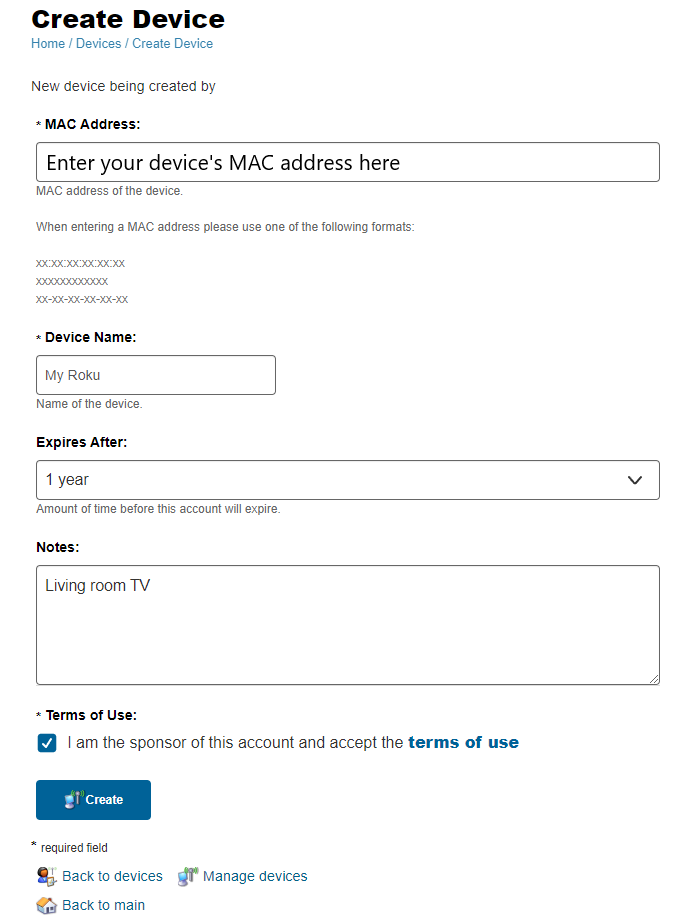
- At the bottom of the form, select to register your device.
If your device still can't connect to the network, restart the device, and then try reconnecting to IU PublicNet.
If the problem persists, contact your campus Support Center.
Find your gaming console's wireless MAC address
To register your gaming console, you will need to know the MAC address (similar to 06:CA:12:F3:BC:7A) for its Ethernet (wired) or wireless network adapter. Use the following instructions to find your gaming console's MAC address:
This is not intended to be a comprehensive list of consoles; rather, it includes those that are commonly used and widely available.
PlayStation 5
- Power up the console.
- When the main menu screen appears, select .
- Select , and then . The wired and wireless MAC addresses will appear on this screen.
PlayStation 4 or PlayStation 3
- Power up the console with no disc in the drive.
- When the main menu screen appears, select .
- Select .
- Select . Your MAC address will appear on this screen.
Xbox One
- Normal method:
- Go to . Select , then , and then .
- The wired and wireless MAC addresses will be displayed.
- Out of the box/no day one patch
- Method 1:
- Connect to IU PublicNet.
- The connection will fail. Run a network test.
- The test will fail. Select the option to retrieve the wired and wireless MAC addresses.
- Method 2 (for newer models):
- Connect to IU PublicNet.
- The connection will fail. Select .
- The Xbox will attempt to diagnose the problem, and then eventually give several options. Go to the manual setup option. The next screen will display several pieces of information, including both MAC addresses.
Note:If you have issues finding the MAC address via the above methods, you may want to try an alternate connection (for example, using your phone as a hotspot) to get the day one patch. - Method 1:
Xbox 360
- To access the Xbox Guide, press the Xbox Guide button on the Xbox 360 controller. The Guide button is silver, is in the center of the controller, and has a green X on it.
- Go all the way to the right and select .
- Select .
- On the new screen, select .
- For the wired connection, make sure the Ethernet cable is plugged in, and then select . For the wireless connection, select .
- Select .
Note:The wired connection test attempt may fail, but it will still allow you to select .
- Select the tab on the upper right, and then select .
- The wired or wireless MAC address will be displayed.
Some of the above is adapted from How to find your Xbox 360 MAC address and How do I find the MAC address on my Xbox 360?
Switch
To find your Switch's MAC address, see How to Find a Nintendo Switch Console's MAC Address.
Wii U
To find your Wii U's MAC address (wireless) or LAN adapter MAC address (wired) after plugging in the console, see How to Find the MAC Address.
Wii
To find your Wii's MAC address or LAN adapter MAC address after plugging in the console, see How to Find the MAC Address.
Using a third-party Ethernet adapter
If you're using a third-party Ethernet adapter, the MAC address may show up as all zeros. To find its MAC address, plug your Wii LAN adapter into a USB port on your computer; if you're using Windows, allow the drivers to install. Continue as follows:
Windows: See Find your Windows network adapter's MAC address.
macOS:
- Open the Terminal program from the
Applications>Utilitiesfolder. - Type
ifconfig, and pressEnter. - Scroll up to "USB Ethernet Adapter". Next to "Physical Address", you will see an alphanumeric value that follows the format
XX-XX-XX-XX-XX; write it down.
AirGroup registration (optional)
If you want to share devices that have Bonjour/Digital Living Network Alliance (DLNA) capabilities with other devices, such as Apple Airplay, AirPrint, and Chromecast, you can enable the AirGroup checkbox during registration. UITS advises skipping this unless you have a specific need for device casting features.
The available AirGroup options are:
- Personal: Your personal device is automatically shared with other devices you own. This includes devices connected to eduroam, IU Secure, or IU PublicNet with your username.
- Shared With: Enter a comma-separated list of usernames of those who can use this device (for example,
user1,user2,user3), or leave blank to only allow your account to access it.
Related documents
This is document aloi in the Knowledge Base.
Last modified on 2023-08-16 16:09:56.