ARCHIVED: Solve audio or video problems in Lync for Mac
On this page:
- Overview
- Change or configure audio devices in Lync for Mac
- Camera troubleshooting
- Audio troubleshooting in System Preferences
- Configure preferences and start over
Overview
Use Microsoft Skype for Business to access Indiana University's UniCom service.
For devices supported by UITS, you can change which device Lync uses for audio from within Lync for Mac. If this doesn't work for your device, you may need to try troubleshooting your macOS System Preferences.
Change or configure audio devices in Lync for Mac
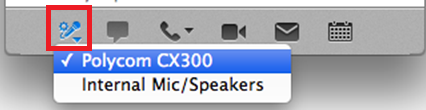
If your preferred device was not automatically set as the default audio device when you connected it, you can change it by clicking the microphone icon in the lower left of the main Lync for Mac window, and selecting your device from the pull-down menu.
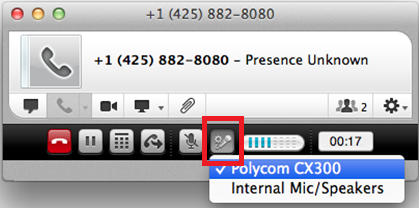
To change the audio device while in a call, click the microphone icon in the lower part of the conversation window, and select your device from the pull-down menu.
You can also configure your audio device settings in Lync Preferences. In the Lync Preferences window, click the tab.
Information in this section was adapted from The Lync Team Blog's post on hotfix 14.0.3.
Camera troubleshooting
If you are having problems with your built-in or attached USB camera for video chat, quit all applications that use video, and then launch Lync for Mac only.
The built-in camera or other attached camera may be controlled by the first video application launched. For example, if video applications like FaceTime or Skype are launched before Lync, those applications can be in control of the camera and prevent its use in Lync.
Audio troubleshooting in System Preferences
If you are having audio problems, and you can't resolve them within the Lync for Mac client, you can specify the input and output devices in your system sound settings:
- Open and select .
- Select the appropriate settings for "Output" and "Input".
Each output and input device can have its own level settings. For example, a USB headset will have an independent volume setting from the internal speakers, or from headphones or external speakers plugged into the 1/8" audio out port. The built-in microphone on a Mac will also have a different input volume from a USB headset microphone. Setting the input between half and full seems to be appropriate.
Configure preferences and start over
If other troubleshooting does not solve the problem, it may be necessary to clear all preferences for Lync for Mac and then set it up as if it were a new installation. It is usually unnecessary to reinstall the application. To clear out all preferences and other files associated with Lync:
- Quit Lync for Mac.
- In your
Homefolder, open theLibraryfolder. Note that macOS hides yourLibraryfolder. To access it:- Press
Command-Shift-g, or from the menu, select . - In the
Go to Folderdrop-down window, enter~/Library, and click .
- Press
- Remove the following files from your
Libraryfolder:/Users/username/Library/Preferences/com.microsoft.Lync.plist/Users/username/Library/Preferences/ByHost/MicrosoftLyncRegistrationDB.xxxx.plist/Users/username/Library/Logs/Microsoft-Lync-x.log(This file is present only if you turned on Lync Logging.)/Users/username/Library/Logs/Microsoft-Lync.log
- In your
Documentsfolder, remove the following:/Users/username/Documents/Microsoft User Data/Microsoft Lync Data
- Optionally, also remove Microsoft Lync History. This will delete saved conversations. For Mac users, the conversation history is not saved to the Exchange
account, but instead is saved locally to the Mac. To delete the history, remove:
/Users/username/Documents/Microsoft User Data/Microsoft
    Lync History
- Open Keychain Access from the
/Applications/Utilitiesfolder:- Delete any keychains on the left that look like the following, where
emailaddressis your email address:OC__KeyContainer__emailaddress
- In your Login keychain, delete the following, where
emailaddressis your email address:emailaddress.cer
- Delete any keychains on the left that look like the following, where
- In the
/Users/username/Library/Keychainsfolder, delete all files that look like the following, whereemailaddressis your email address:OC__KeyContainer__emailaddress
This is document bave in the Knowledge Base.
Last modified on 2019-06-05 16:14:29.